
GUIDE // FATSECRET + ORGANIZR
Connect FatSecret to Organizr
Follow these 3 steps to import your food diary data into Organizr. No coding is required: you only need two accounts and about 5 minutes.
Before you start
You will need two different accounts
Your FatSecret Platform account is only used to create the API keys. At the end, you will sign in with your personal FatSecret account - the one you use in the app to log meals and calories.
Developer account
Create a FatSecret Platform account
Open the FatSecret developer platform and sign up. This account lets you generate the credentials required to connect FatSecret to Organizr.
Open FatSecret PlatformAlready have a Platform account? Sign in and go straight to step 2.
API credentials
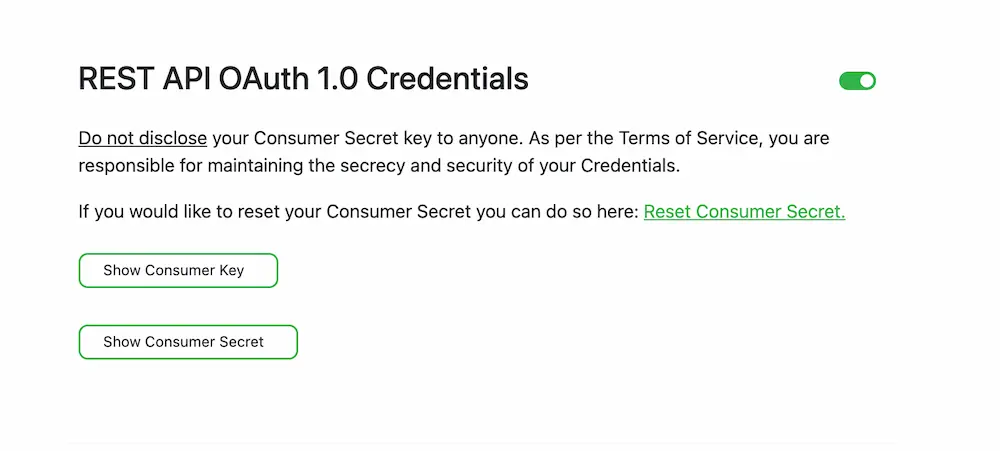
Enable “REST API OAuth 1.0 Credentials”
After signing in to FatSecret Platform, open Settings, then select API KEYS. Find the section named exactly REST API OAuth 1.0 Credentials and enable it.
Save these
Copy both keys
Consumer KeyConsumer Secret
Keep them somewhere safe. Do not publish them or share them with anyone else.
Inside Organizr
Add the keys and click “Authorize”
Open the FatSecret integration section in Organizr. Paste the Consumer Key and Consumer Secret into their respective fields, then click Authorize.
Make sure you use the right account
FatSecret will open in your browser. Sign in with the account you use in the actual FatSecret app - the one containing your food diary. Do not use the FatSecret Platform account created in step 1.